Audio Bridge / Setup guide
How to add Discord audio to OBS
Bring your voice channel into OBS as a personal audio mix. Use FRAME Audio Bridge to balance each participant, control who your stream hears, and add an optional speaking overlay.
OBS receives one combined mix. Each streamer gets their own volume, mute, delay, and overlay settings. A Discord server can bridge one shared voice channel at a time.
Before you start
- OBS Studio with Browser Sources, and a Discord server where you can join a voice channel.
- A server administrator to install the bot and grant streamer access.
- Permission from everyone whose voice you plan to relay. Explain whether you will broadcast or record them, and ask new participants too.
Want to explore the controls first? Try the interactive demo with fictional voices before connecting your server.
The OBS screenshots below use OBS Studio 32.2 on Linux. Your theme or operating system may look slightly different. Example URLs are fictional: always use your own private links from /frame links. Tap an image to open it at full size in a new tab.
Step 01 / In Discord
Install the bot and grant access.
A server administrator opens Add to Discord, chooses the server, and authorizes the bot. In that server, run /frame-admin setup.
To give another streamer access, use /frame-admin invite user:@Streamer. The invitation sends their setup instructions and private links by DM. Administrators can also configure an operator role with /frame-admin setup.
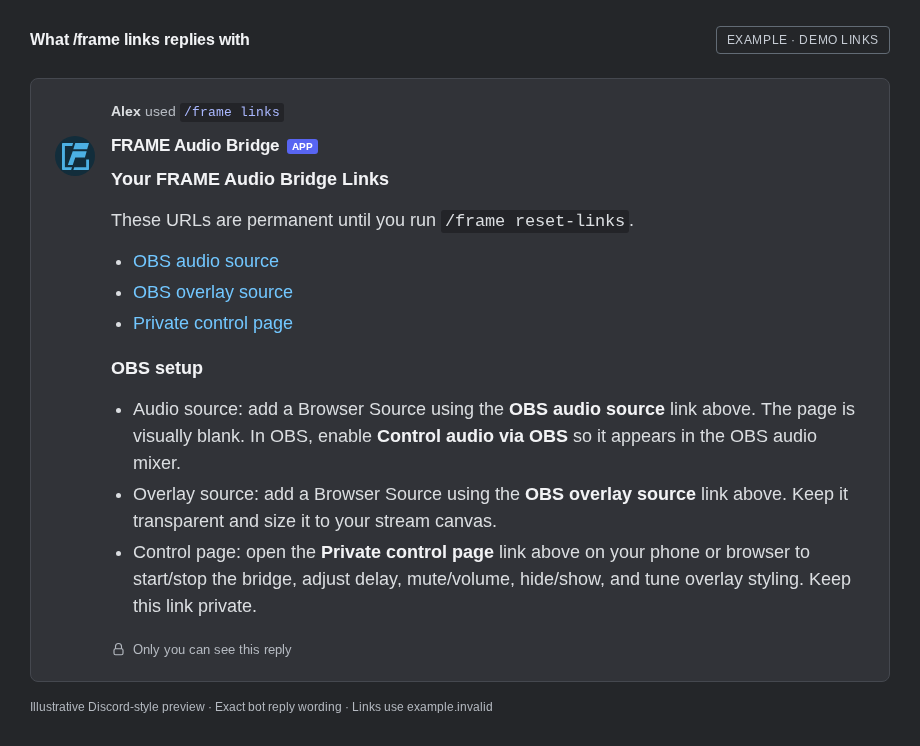
As an approved streamer, type /frame links in a text channel in that server. The bot replies in the channel with a message only you can see, containing your three personal links:
 View full size
In your Discord reply, the blue names are clickable links. To paste one into OBS, copy its link address: right-click it on desktop, or press and hold it on mobile, and choose Copy Link. Copying just the words “OBS audio source” will not copy the URL.
- Audio source
- Paste into an OBS Browser Source to receive your combined audio mix.
- Overlay source
- Optionally add a second OBS Browser Source to show names, avatars, and who is speaking.
- Control page
- Open in your normal browser or on your phone to manage your mix.
Keep these links private. Anyone with your audio link can listen while your mix is active; anyone with your control link can operate it. Avoid showing them on stream or in screenshots.
Step 02 / In OBS
Add your Discord audio source.
-
Create a Browser Source
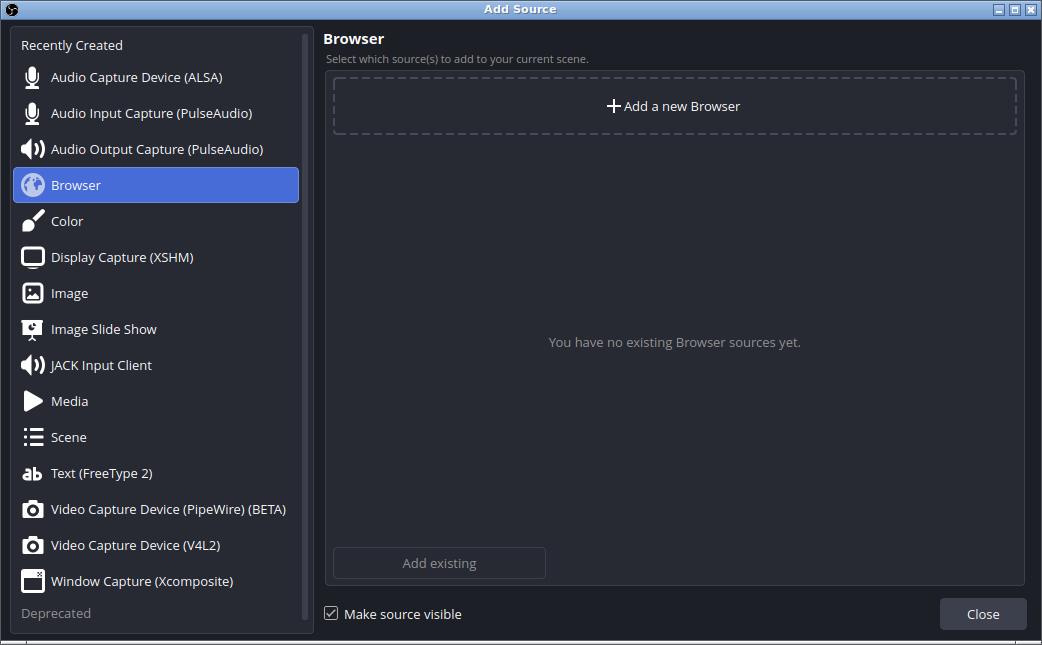
In the OBS Sources panel, select +, then Browser. Choose Add a new Browser (or Create new in older versions) and name it “FRAME Discord audio.”
 View full size
Choose Browser. The bridge supplies audio through a web page, so it uses a Browser Source. -
Paste your audio link and enable OBS audio control
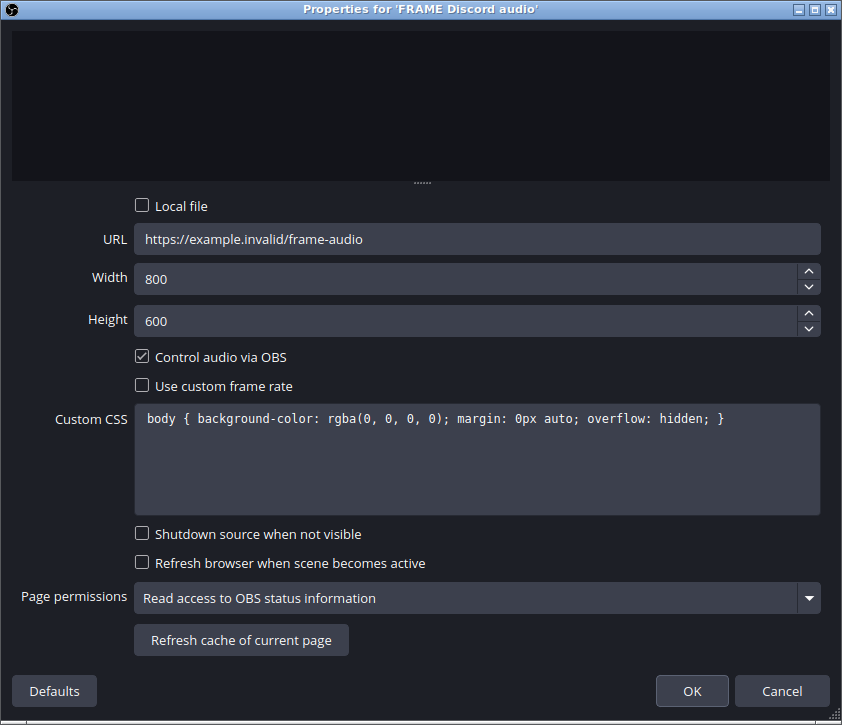
Paste your private audio source URL into URL. Enable Control audio via OBS, then select OK. The source will appear in the OBS Audio Mixer, where you can set the overall level of the Discord mix.
 View full size
Use your audio link here. Leave Local file off and check Control audio via OBS. The example.invalid address shown is a placeholder.
Keep the audio source available in the scenes where you want the mix. OBS can unload a Browser Source when it is hidden; leave Shutdown source when not visible unchecked if it needs to keep running across scene changes. See the OBS Browser Source guide for those settings.
Step 03 / Check your audio routes
Capture each voice once.
Your own microphone
Your Discord voice can be included in the bridge mix. If OBS already captures your microphone directly, mute your own participant in your private bridge controls. That mute applies to your bridge mix; your friends can still hear you in Discord.
The rest of the call
Check whether Desktop Audio or another OBS source also captures Discord. Keep a single route for the call to avoid doubled voices or echo, while preserving any game or music audio you need. The OBS application audio capture guide explains how to select applications on supported systems.
What you hear in your headphones
If you already hear the call through Discord, keep OBS audio monitoring off for the bridge source to avoid hearing a second, delayed copy. If you enable monitoring to check the mix, use headphones and make sure OBS is not also capturing that monitoring device. Use a short test recording to check what your audience will hear.
Open Advanced Audio Properties from the Audio Mixer’s settings or context menu. Find FRAME Discord audio and set its Audio Monitoring to Monitor Off. This controls local playback; the source still goes to the output tracks you have enabled.
 View full size
Step 04 / Start your mix
Join, start, and balance the voices.
Join the Discord voice channel, confirm everyone’s permission, and run /frame start. You can also start from your private control page. If another streamer already has an active mix in this server, join that same voice channel.
Ask someone to speak and check the OBS audio meter. On your control page, set each participant’s volume from 0–200% and mute any voices you do not want in your mix. Other streamers’ settings stay independent.
If your video arrives later than your Discord audio, add delay in the bridge controls. The available setting adds up to 10 seconds; it does not remove existing network or playback delay. Check alignment in a local OBS recording before going live.
When finished, run /frame stop or stop from your control page. This stops your own mix. Other active mixes continue, and your links and saved preferences remain ready for next time.
Optional / Your OBS scene
Add a Discord speaking overlay.
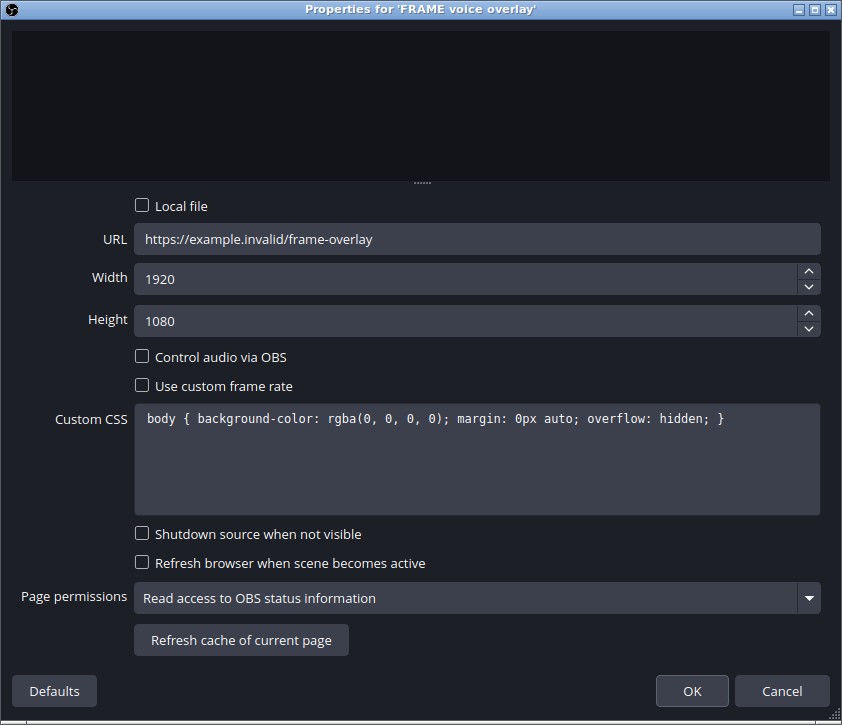
Add another OBS Browser Source and paste your private overlay source URL. Set its width and height for your scene, place it above the background or game capture, and position it where viewers should see your voice group.
 View full size
/frame links. This example uses 1920 × 1080; choose dimensions that suit your scene. Your audio continues through FRAME Discord audio.Use the overlay settings on your control page to choose a row, column, or single active speaker; adjust avatars, names, colors, and muted indicators. The overlay follows your configured audio delay.
Mute changes audio. Hide changes the overlay. Hiding a participant’s card does not silence them. Muting their audio does not automatically hide their card. You can use the audio source without adding an overlay at all.
Before you go live
Check the common snags.
OBS has no Discord audio.
Run /frame status or check your control page to confirm your mix is active in the expected channel. Confirm the Browser Source uses the audio URL, “Control audio via OBS” is enabled, and both the participant and OBS source are unmuted with volume above zero. Have someone speak while checking the meters, then make a test recording.
The stream has echo or doubled voices.
Check for Discord audio captured both by the bridge and by Desktop Audio or another source. If only your voice is doubled, check your direct microphone source and mute yourself in the bridge mix. If only your headphones have an echo, check OBS monitoring. Follow the audio routing checks above.
The audio seems too late.
Check your saved bridge delay and any additional OBS audio offset. Compare a local OBS recording with your scene rather than relying only on the live stream player, which adds its own delay. If the Browser Source has not been refreshed since a player update, open its properties and use “Refresh cache of current page.”
The overlay is missing a participant.
Check whether you hid their card, selected a single-speaker layout, or enabled display settings that hide inactive speakers. Confirm the overlay Browser Source is visible and uses your overlay URL. The overlay and audio source have separate connections.
I cannot start a mix.
Join a voice channel first and check that a server administrator has completed setup and granted you access. Each server supports one shared voice channel at a time, so join the existing bridged channel if another mix is active. Service capacity is limited; follow any retry guidance in the command reply.
I exposed one of my private links.
Run /frame reset-links. This stops your active mix and invalidates the old links. Update your OBS sources and control-page bookmark with the new URLs, then start again when ready. Your saved mix preferences are kept.
Ready for a test stream?
Try a short recording with your group before your next broadcast. If setup feels confusing or something sounds wrong, share feedback in the support Discord. Include your OBS version, operating system, approximate participant count, and what happened. Keep private source and control links out of your report.
Original screenshots of OBS Studio, captured for this guide with example settings.